

What is Padlet?
Padlet is a digital communication tool which allows you to interact with your tutors and fellow students. It is an interactive space that can be filled with text (posts), images, videos and links; all of which can be accessed easily from multiple devices.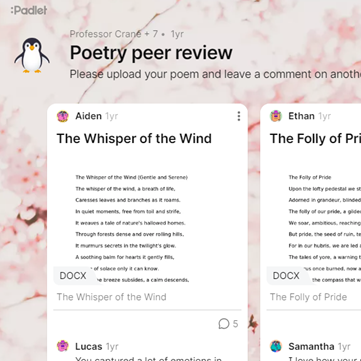
Examples of uses of Padlets within learning and teaching include:
- Discussion board – the creator asks a question for contributors to respond.
- Sharing ideas, resources and suggestions – these can be multimedia submissions.
- Peer review of student’s work.
- Group exercises in or out of lectures.
- Curating resources.
The following link takes you to Padlet’s website that provides more information.
Using Padlet
How to access Padlet through Moodle
When you click on the Padlet link within your Moodle module, an account will automatically be created for you.
How to set up a Padlet account
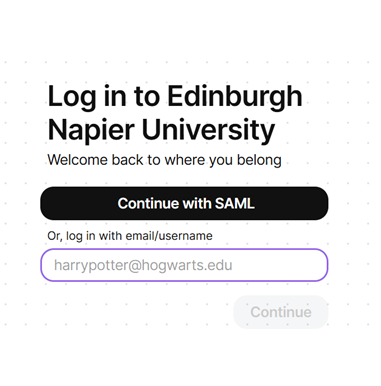
Edinburgh Napier staff and students can now create accounts in Padlet as part of the single sign on process, so you do not need to request for an account to be created.
Login via: https://padlet.com/edinburghnapier where you should select the ‘Continue with SAML’ option.
How to create a Padlet
Padlet offers a wide range of different layouts and styles. You can also choose from hundreds of different types of backgrounds to suit the type of Padlet you are creating and its intended audience. You can even upload your own background if you’d prefer!
The following link will take you to Padlet’s YouTube account where you can access an Introduction to Padlet: Getting Started for Absolute Beginners video. You will also find a whole host of other videos which will provide you with hints, tips and support for creating your Padlets.
Padlets can be exported in PDF, Excel or image formats, which is recommended when using Padlet for assessment purposes and when you need to keep a permanent record.
How to link your personal Padlet account
If you have an existing personal Padlet account that you set up out with the University, you can import any or all of the Padlets into our ENU license.
- Login to your Edinburgh Napier University Padlet account at https://padlet.com/edinburghnapier
- Click on your profile (top right of the screen)
- Select ‘Import’ from the drop down menu
- Follow the link to leave ENU’s Padlet account and login to your account on padlet.com
- Select the Padlet(s) you wish to import
- Select Import Padlet(s)
- A success message will be displayed when your Padlets have imported.
Padlets guide to - Import Padlets from an existing account
How to share your Padlet
Permission settings control the level of access and editing permissions visitors have when they open your Padlet.
When you create a new Padlet, the default permission is set to Writer. This allows anyone you share the Padlet with to add new posts, comment, and react.
If you do not want others to add content, you can change the permission to Reader under Permissions. This will place the Padlet in read-only mode.
Here is an overview of all the permissions and what they mean:
- No access: Only those who have been invited as a collaborator can access the Padlet. Otherwise, this Padlet is completely private.
- Reader: Visitors are allowed to read posts. They cannot create their own posts or leave comments or reactions.
- Commenter: Visitors can comment on posts and add reactions.
- Writer: Visitors are allowed to read, write new posts, comment and add reactions.
- Moderator: Visitors can read, write, edit and approve/deny others' posts.
Privacy and permission settings
You also have the option of how you wish for others to access the Padlet for more information click here.
Padlet Language Support
Padlet supports a large number of languages, their site has the most up to date list and instructions on how to change your default language.
How to change default language in Padlet
Accessibility
To access Padlet’s most up to date information on Accessibility, please click on the following link:
Padlet Accessibility