

Using the Ebook Central App
This step-by-step guide will help you to install and use the Ebook Central App. This free software is required to download ebooks from the ProQuest Ebook Central website.Install the Ebook Central App
1. To download an ebook from the Ebook Central platform using the Ebook Central App, look for the 'Download' button.
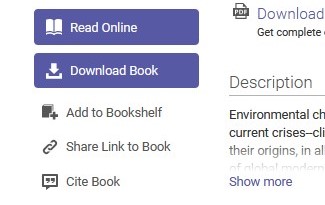
2. You will be asked 'Select how long you would like to borrow this book.' This is the amount of time you will be able to read the downloaded book, similar to if you borrowed a physical book from a library. After this time expires, you'll need to download the book again to continue using it.
Please be aware that some books have a limit on how many people can download them at the same time. You can help keep books available for other users by not choosing a loan length longer than you need.

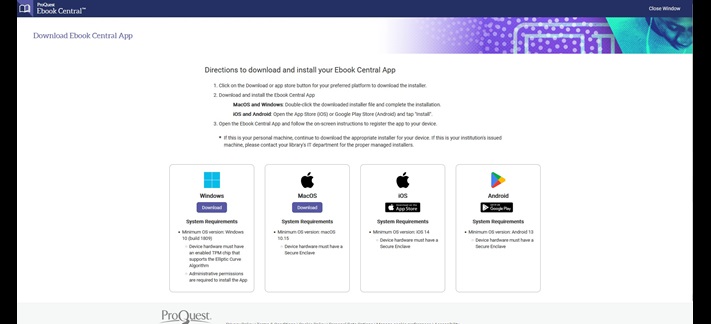
3. If you are using your own computer or device, you can download the Ebook Central App from Ebook Central's website.
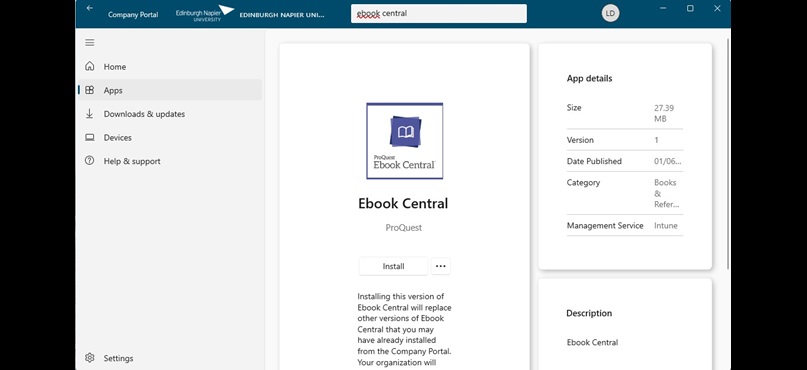
4. If you are using a university computer or a managed laptop, you can install the Ebook Central App from the Company Portal. Open the Company Portal from the desktop or search for it in the Start menu. Then search for 'ebook central' to find the app. Click 'Install' and wait for the installation to complete.
5. When you open the app for the first time, it will ask for a login code. This code creates a link between the Ebook Central website and the app on your device so books can be synced between them.
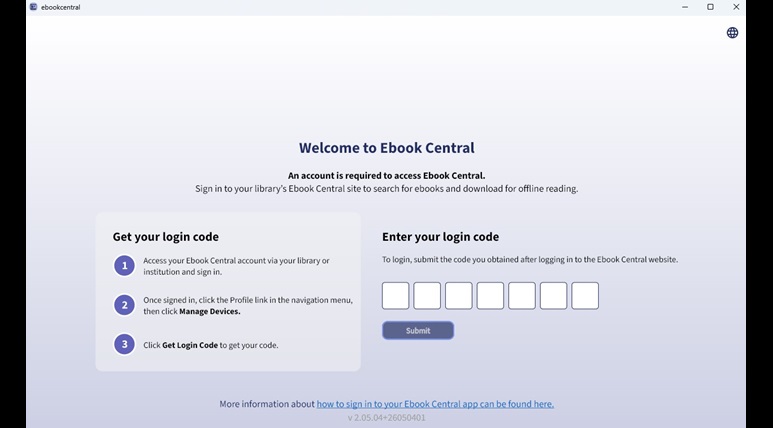
6. On the Ebook Central website, go to Manage Your Devices and click the button 'Get Login Code'.
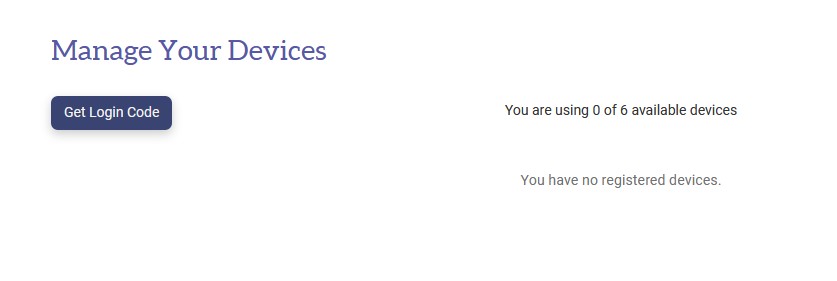
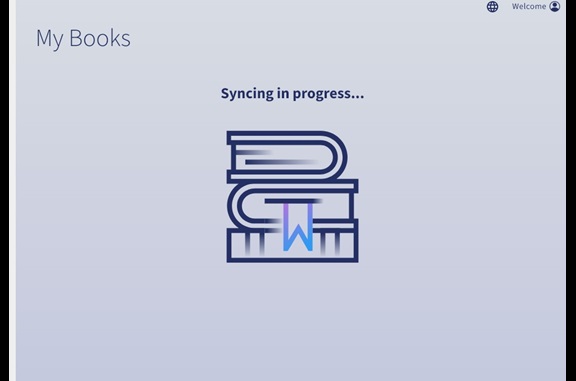
7. It will show a series of 7 numbers. Copy these numbers and enter them into the app when it asks for a login code. The app will then sync information about the book you've downloaded. This may take a few minutes so please wait if nothing appears immediately.
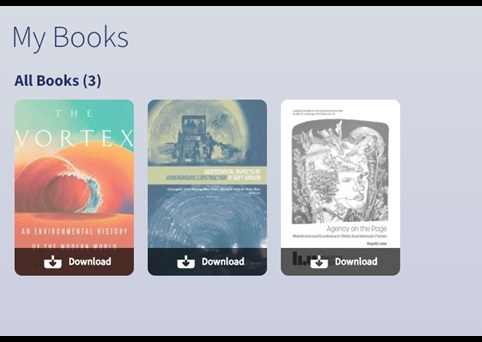
8. When you see your book appear, click 'Download'.
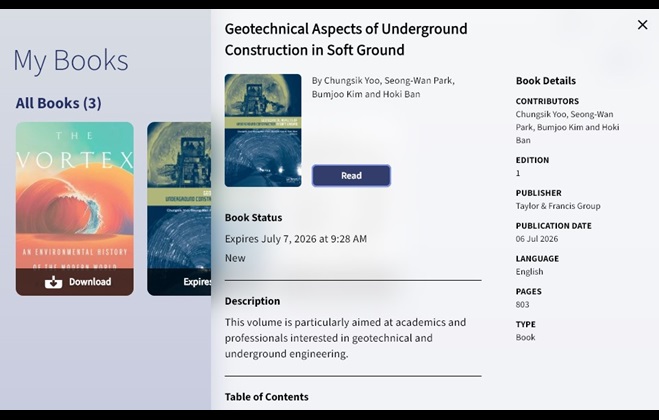
9. When the download is completed, click 'Read'.
10. In the reader, you can adjust the font size using the 'A' button in the top right. You can create bookmarks with the flag button at the bottom right. You can search inside the book or view your bookmarks by using the book button in the top right.
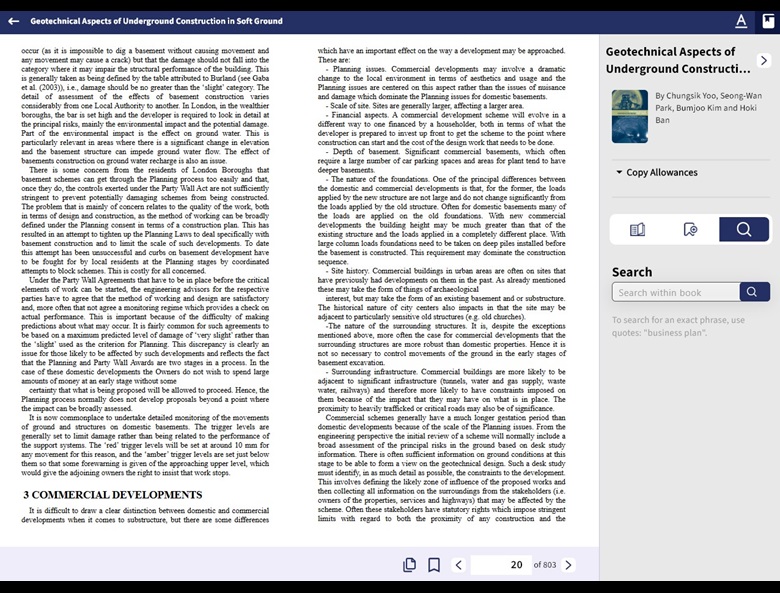
11. You can sync your books to up to six different devices, e.g. a tablet or smartphone. To do this, download the app to each device and then go back to Manage Your Devices on the Ebook Central website and create new login codes for each device.