
Download an ebook from VLeBooks
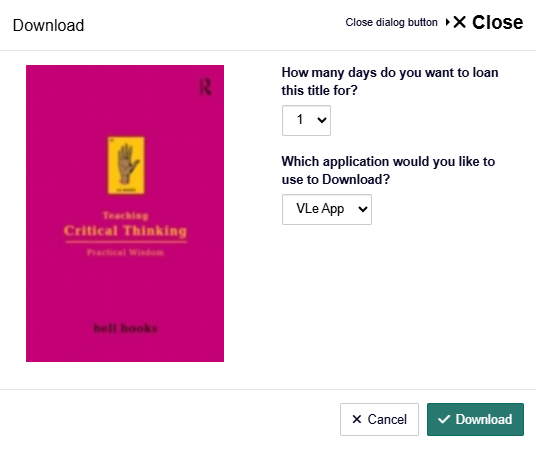
1. To download an ebook from the VLeBooks platform using the VLeBooks App, look for the 'Download' button.
2. You will be asked 'How many days do you want to loan this title for?' This is the amount of time you will be able to read the downloaded book, similar to if you borrowed a physical book from a library. After this time expires, you'll need to download the book again to continue using it.
Please be aware that some books have a limit on how many people can download them at the same time. You can help keep books available for other users by not choosing a loan length longer than you need.
3. Choose 'VLe App' for the question 'Which application would you like to use to Download?'. To use Adobe, see our instructions for Adobe Digital Editions.
4. Then click the 'Download' button.
5. When you see this confirmation message, select 'Generate New Access Code'. This will display a sequence of letters and numbers that you will need to input into the app, once you have downloaded it.
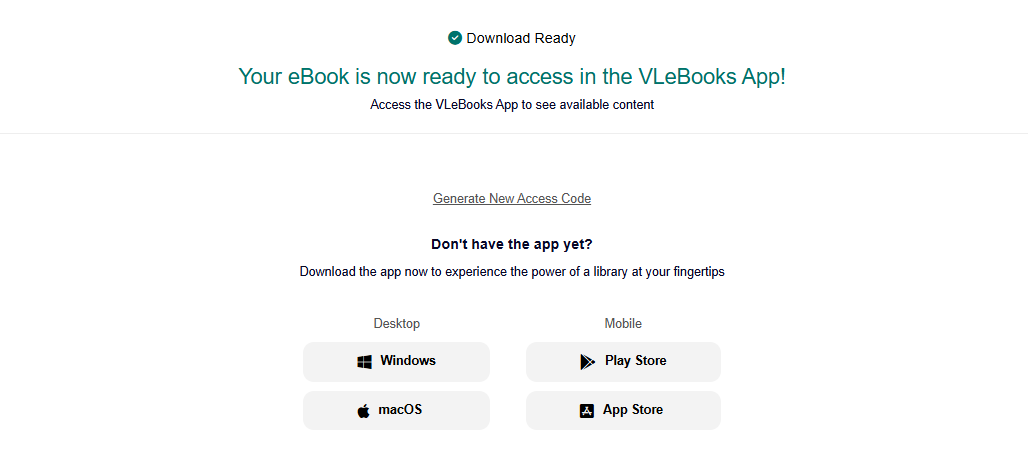
6. If you are using your own personal device, select the relevant button below Desktop/Mobile to download the app.
7. If you are using a university computer or laptop, you will need to install the VLeBooks App from the Company Portal.Search for 'Company Portal' from your Start menu and open the application.
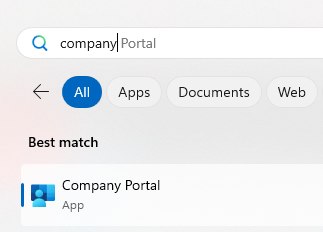
Search for the VLeBooks app and click on the icon.
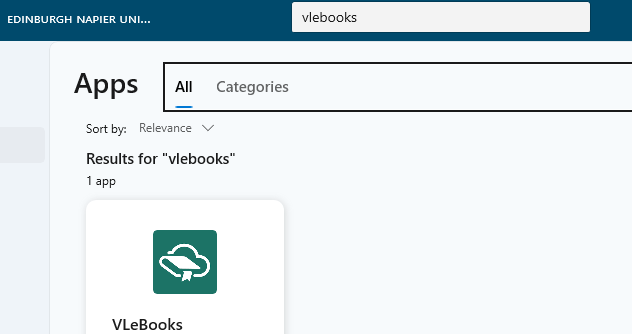
Choose 'Install' and wait for the app to install.
8. Open the VLeBooks app.
9. Select the button for 'Continue with Access Code'.
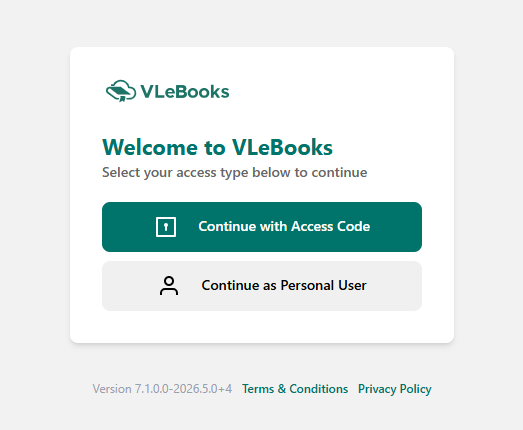
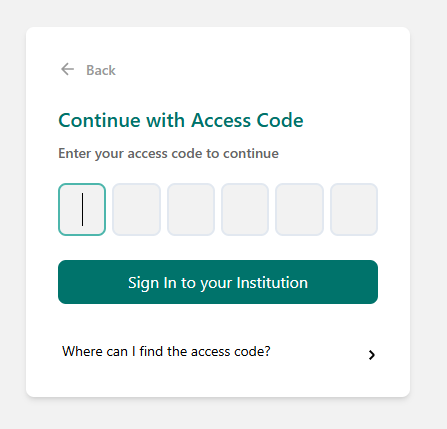
10. Enter the access code from the VLeBooks website confirmation page (Step 5).
11. Find the book you want to read in your 'My Loans' area and select it.
12. You will see the option either to Read or to Download. If you want to read without an internet connection, you'll need to download the book.
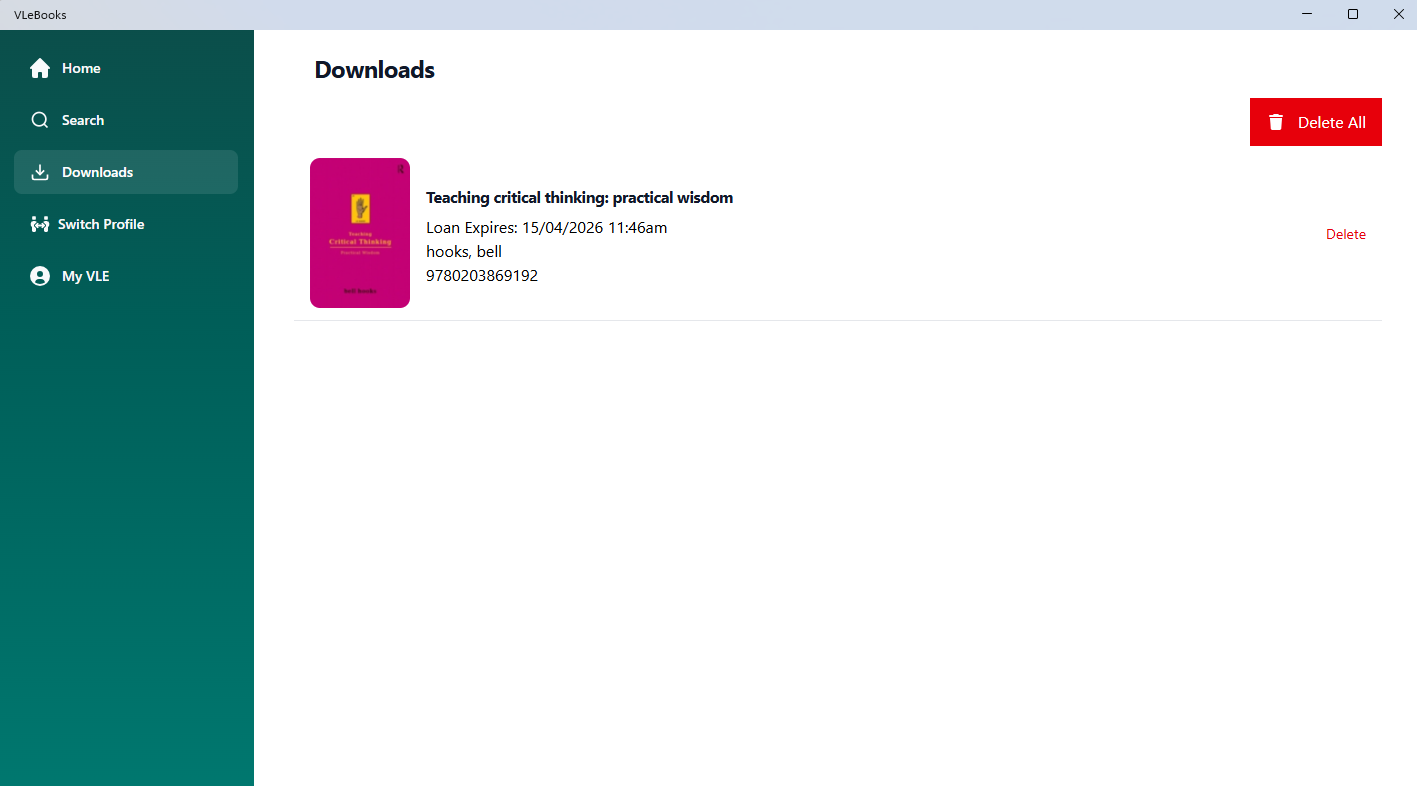
13. Once a download is complete, you'll see the book in the 'Downloads' tab. Then click on the book to open it.
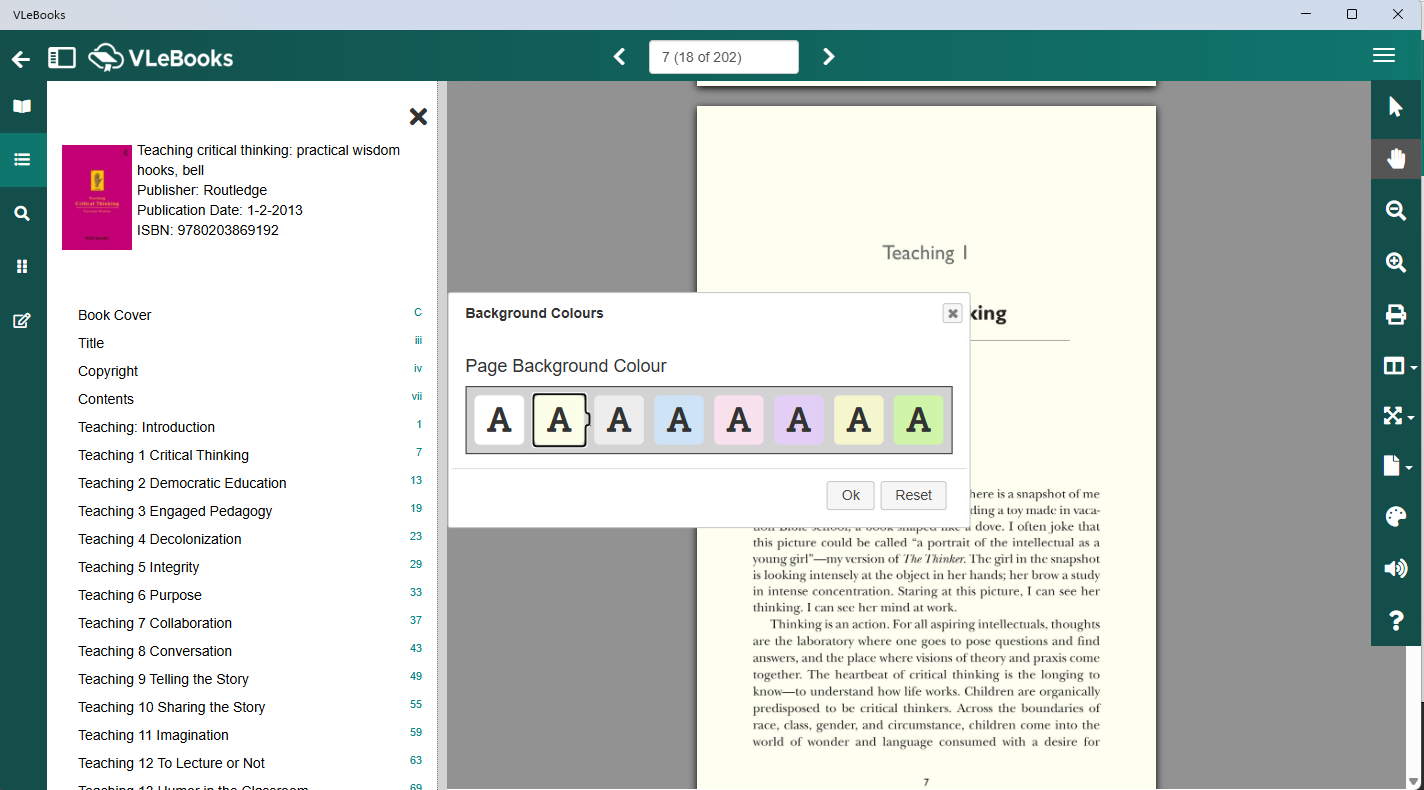
14. Within the reader, open the right hand menu to explore options such as changing the background colour, zoom, and changing the page layout.
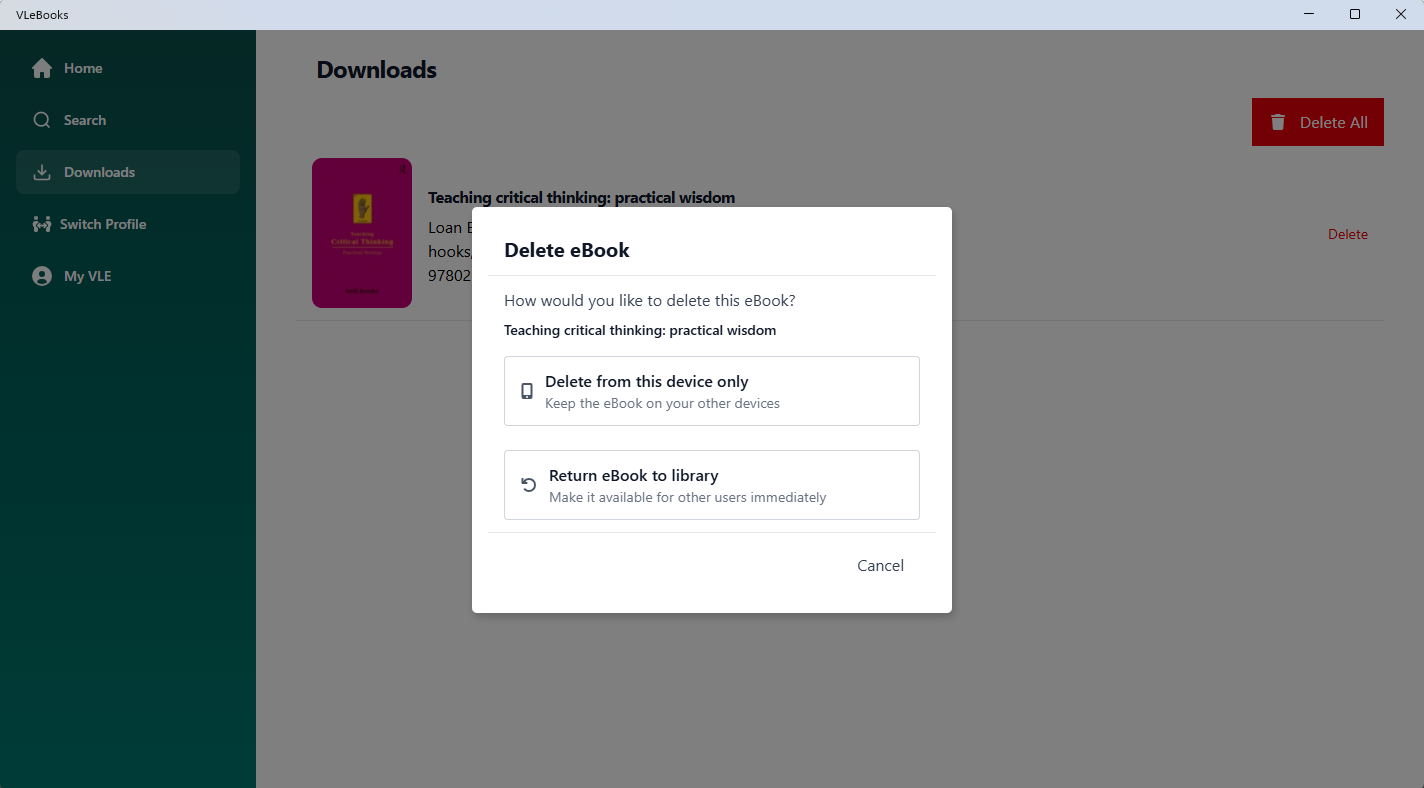
15. Once you have finished with the downloaded book, please click the 'Delete' button and choose 'Return eBook to Library'. This reduces waiting time for other users who want to access the book.